
If you stumbled upon this video, you’re probably well aware that Squarespace does not natively offer the ability to create vertical lines in their drag-and-drop editor. There is a way to custom-code vertical lines, but I’ve personally never gotten it to work 100% of the time (especially on mobile view).
So here in this video, I teach you my personal creative solution for adding vertical lines to your Squarespace website. The best part about this method is that it’s super simple, easy, fool-proof, and does not require any code! All you need to do is create a vertical line graphic in Canva with a transparent background, upload it to your website, and adjust the layout/formatting.
Click here to download & customize my free vertical line template in Canva →
TIMESTAMPS:
0:00 Welcome intro
1:28 How to create a vertical line with Canva Pro
2:27 Uploading your vertical line to Squarespace
3:39 Hiding your vertical line on mobile view
6:04 Wrapping up & outro
ADDITIONAL INFO ✨
In order for this to work properly, you will need Squarespace 7.1 (Fluid Engine) and Canva Pro.
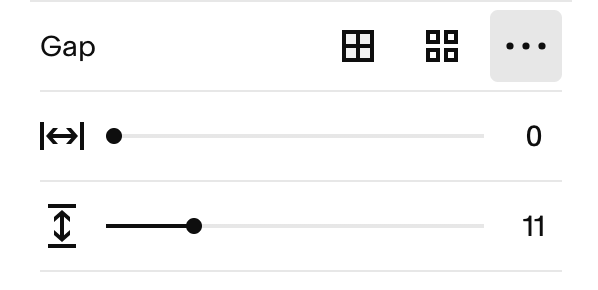
Also, I forgot to mention this in the video at the 2:42 timestamp: You will need to have the horizontal gap spacing set to 0 (in the section settings ↓) if you want your section layout to look similar to mine.
Got any questions or need my help?
HIRE ME TO BUILD OR EDIT YOUR WEBSITE 👩💻
Quick Fix / Questions (1-hour website support sessions) Learn more →
VIP Days (4-hour website work sessions) Learn more →
Custom Web Design Learn more →
GET 10% OFF YOUR SQUARESPACE PLAN 💸
Use my affiliate link for 10% off your first year of Squarespace! Sign up here or use the code LUMINESCENT10
